How to use Punjab Board Results
Every step with a picture. The numbers on each picture match the list under it.
تصویروں کے ساتھ مکمل رہنمائی — ہر تصویر کے نمبر نیچے دی گئی فہرست سے ملتے ہیں۔
Check your result by roll number
اپنا بورڈ اور کلاس منتخب کریں، رول نمبر لکھیں اور «Check Result» دبائیں۔
The quickest way, on the home page or on your board’s own page.
- Open Check Result. The Roll No. tab is already chosen.
- Choose your board and your class. When a board has more than one result for that class, choose it under Result; the latest is chosen for you.
- Type your roll number and press Check Result.
- A board or class marked “not available yet” or “coming soon” has no result on the site yet.
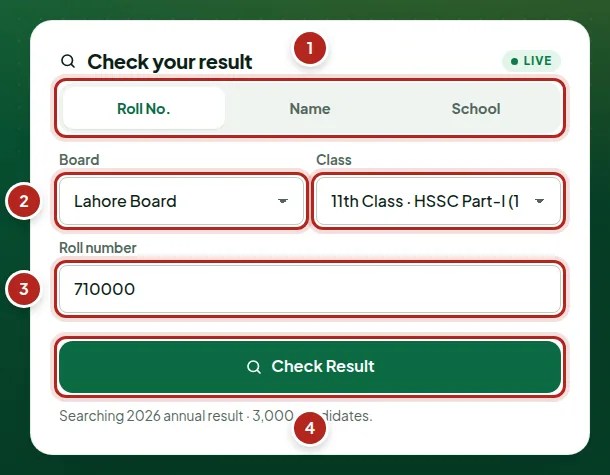
- Search by roll number, name or school
- Your board and class
- Your roll number
- Check Result
Read your result card
رزلٹ کارڈ میں آپ کی تفصیل، نتیجہ، نمبر اور فیصد۔
Everything on the card is as printed in the board’s result gazette.
- On the left: roll number, name, father’s name, institution, group, class and session.
- On the right: PASS or the subjects to reappear in, your marks and, when the total is known, your percentage.
- Print / Save PDF prints the card or saves it as a PDF. Share sends a link to it. Check another clears the form for the next roll number.
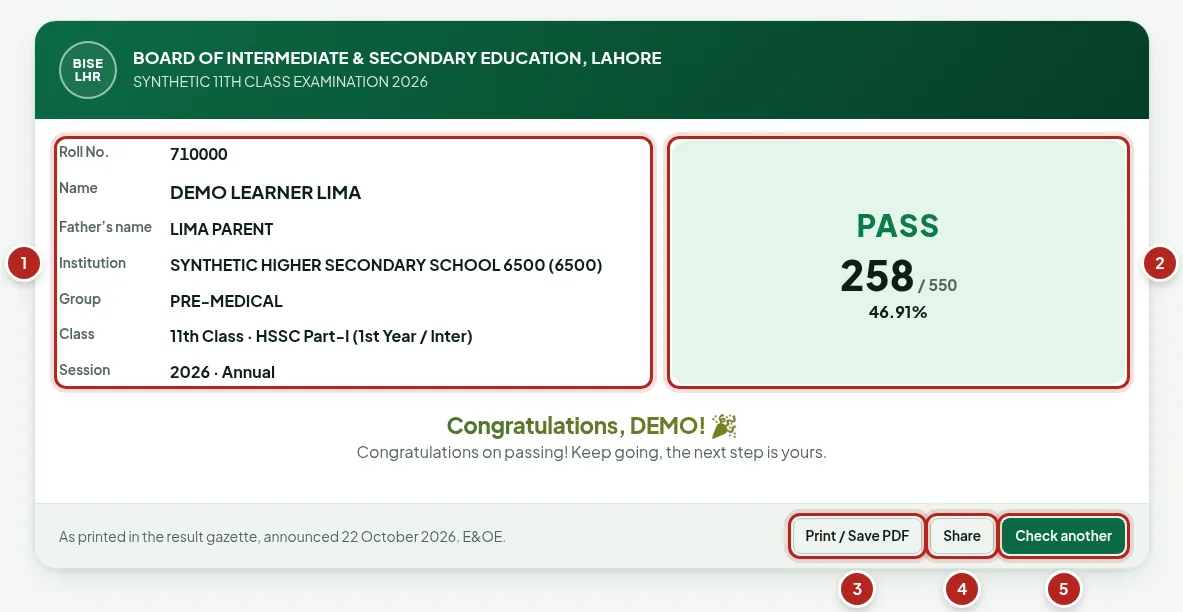
- Your details, as printed
- Pass or fail, marks and percentage
- Print or save as PDF
- Share a link
- Check another roll number
Find your result by name
رول نمبر یاد نہیں؟ نام سے تلاش کریں۔
Don’t have your roll number? Search the board’s list by name.
- Open the Name tab, choose your board and class, and type your name. At least one word needs three letters or more.
- Every matching student is listed with roll number, result and marks. Adding a second name or your father’s name narrows the list.
- Press View to open the full result card; the back button returns to the list.
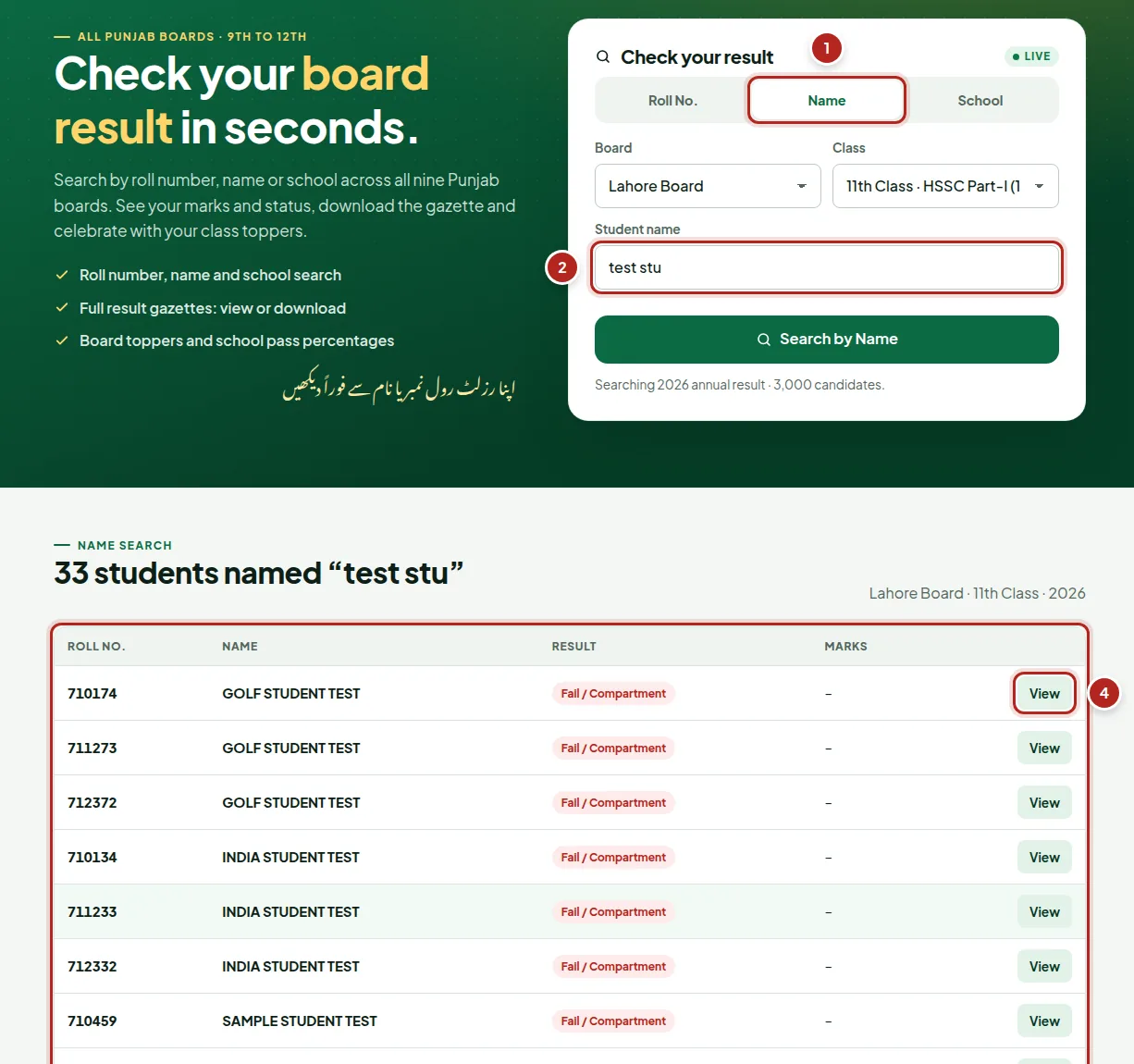
- Name tab
- The name you typed
- Matching students
- Open the full result
Find your school’s students
اسکول یا کالج کے نام یا کوڈ سے اس کے طلبہ تلاش کریں۔
The School tab searches institutions by name or code.
- Open the School tab, choose board and class, and type your school or college name or its code.
- Pick your institution from the list to see its students and their results.
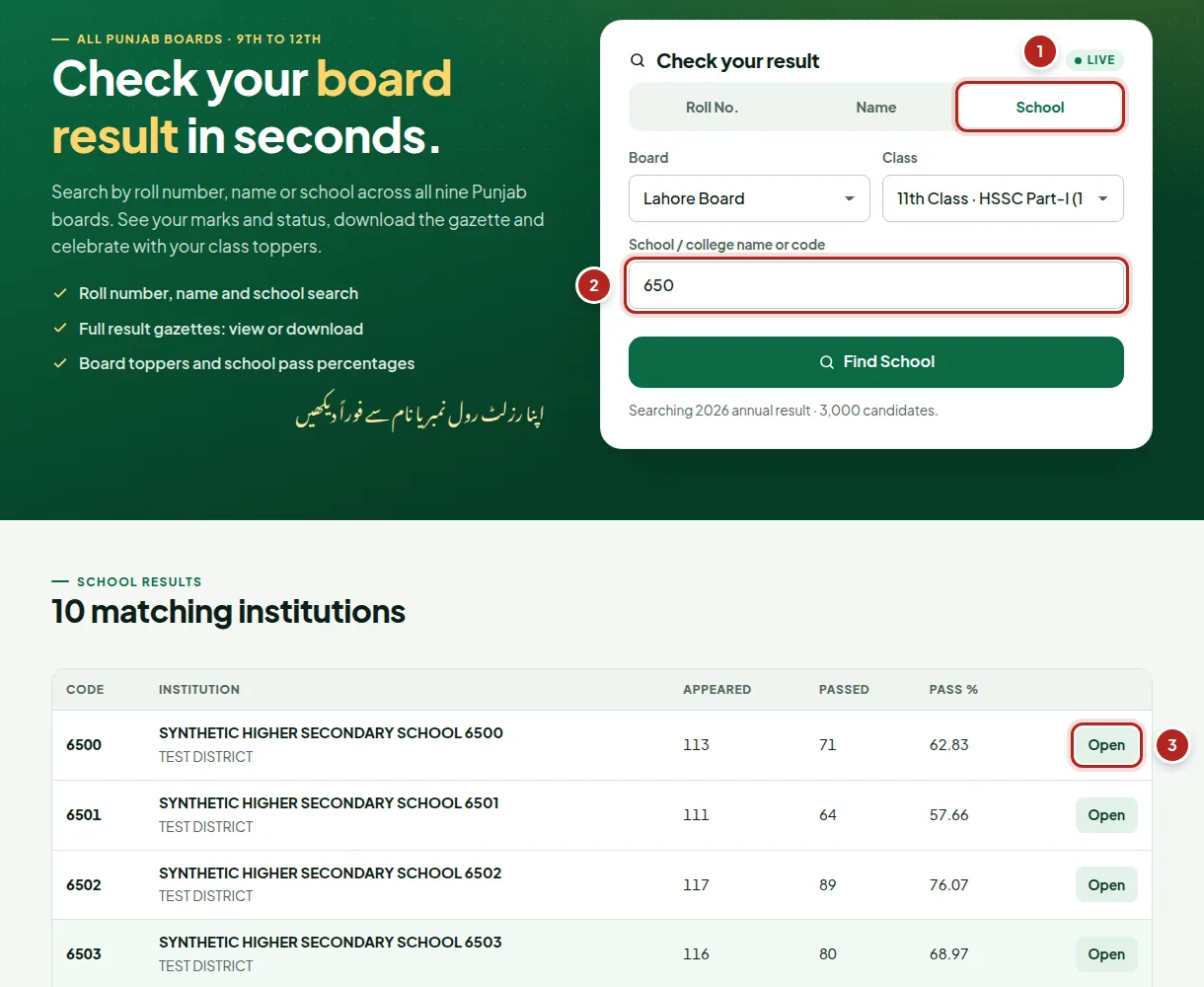
- School tab
- Name or code
- Matching institutions
View or download a result gazette
بورڈ کا رزلٹ گزٹ یہاں دیکھیں یا ڈاؤن لوڈ کریں۔
The gazette is the board’s full printed result.
- Open Gazettes and choose a board and class, or browse every board’s gazettes below.
- View opens the gazette here in your browser, page by page, so it works on mobile data.
- Download saves the PDF.
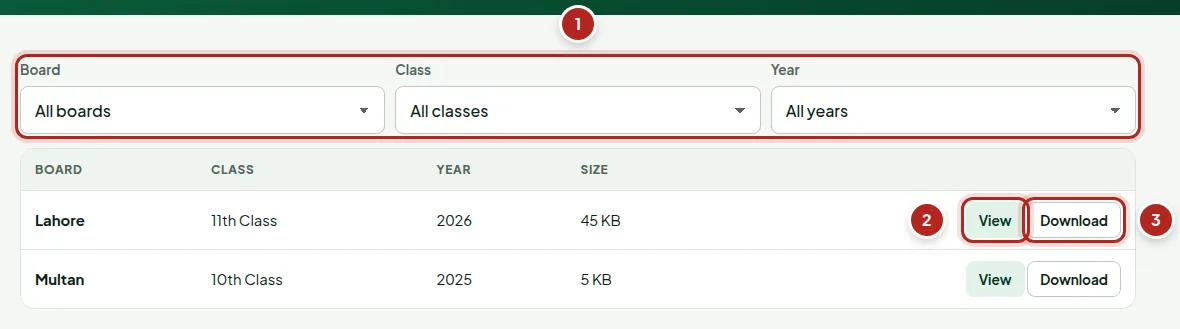
- Board and class
- Read it online
- Save the PDF
Find your name in the gazette
گزٹ میں اپنا رول نمبر یا نام تلاش کریں۔
The gazette viewer can search the pages for you.
- Type a roll number or a name in Find and press the button: the viewer goes to the page and marks what it found.
- Move page by page, type a page number, or zoom in and out.
- Download saves the whole PDF.
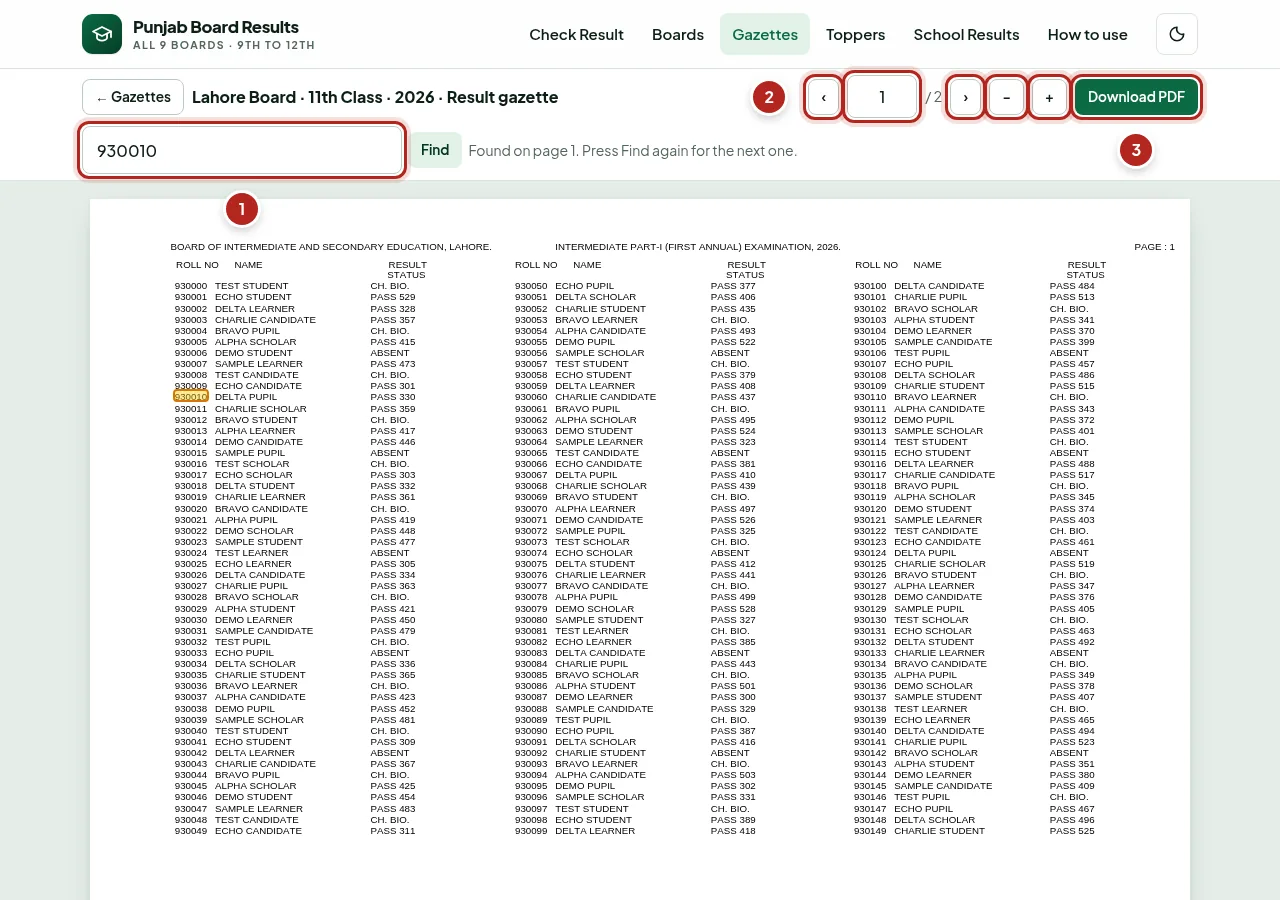
- Find a roll number or name
- Pages and zoom
- Download the PDF
See the toppers and save their posters
ٹاپرز کی فہرست اور ان کے پوسٹر۔
The first ten positions overall and in every group.
- Open Toppers and choose the board, class and result.
- Students on the same marks share a position, so a list can have more than ten names.
- Poster images makes poster pictures of the position holders to download or share; Download PDF puts the posters in one PDF.
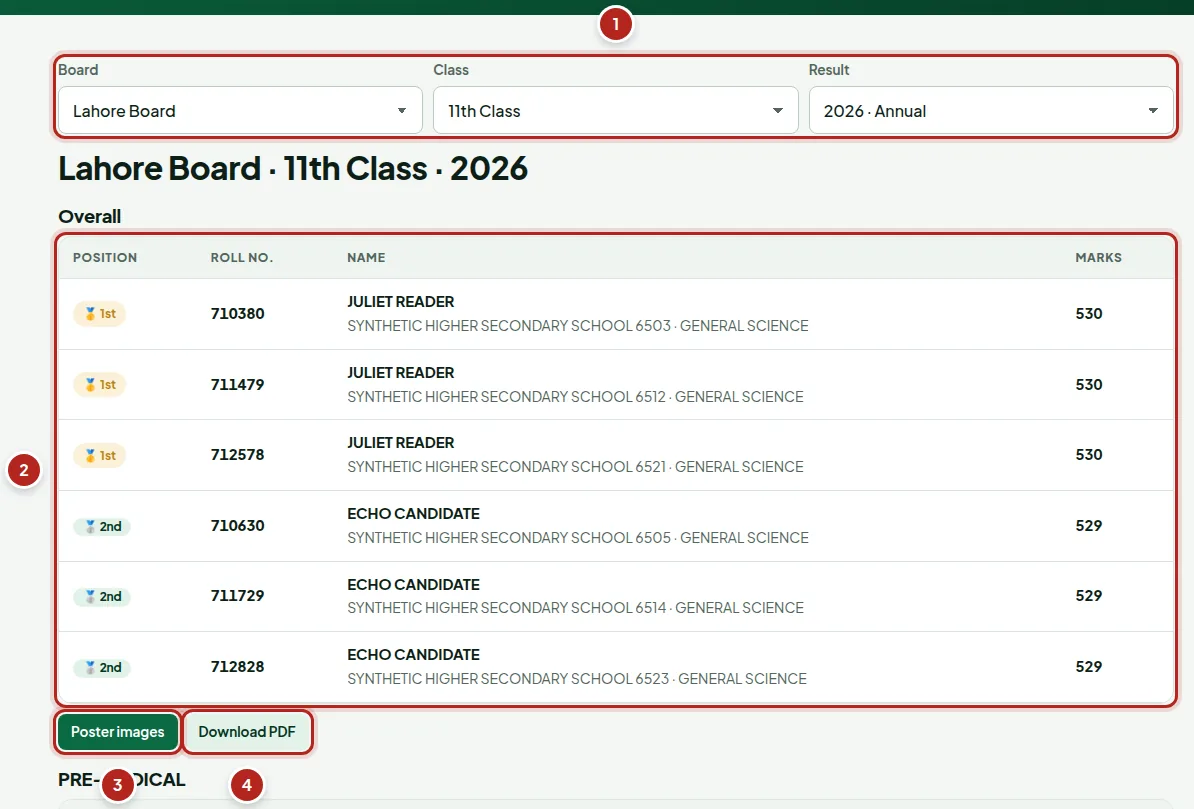
- Board, class and result
- Positions, names, schools and marks
- Poster images
- Posters as one PDF
School results, PDF and images to share
اسکول کا مکمل نتیجہ، PDF اور شیئر کرنے کے لیے تصاویر۔
Every institution’s students, ranked by marks.
- Open School Results, choose board and class, and search for your institution by name or code (20 to a page).
- Open it: students are listed highest marks first. Filter by name or roll number, minimum marks or passed only.
- Download PDF makes an A4 list with the first-position holders and a QR code to the school’s page. Images to share turns its pages into pictures for WhatsApp.
- To rank several campuses together, tick them in the list and press View together.
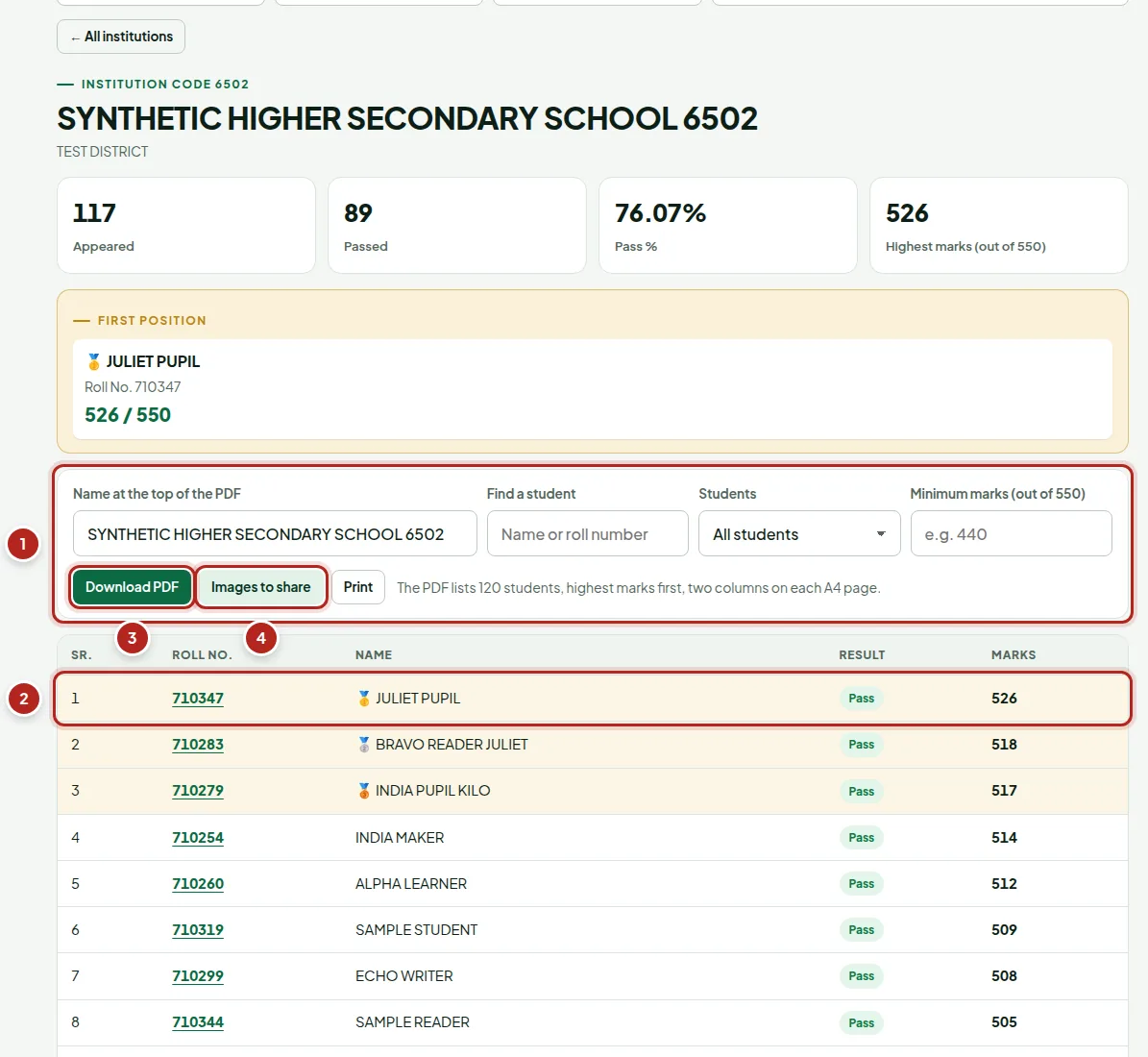
- Filters
- Students, highest marks first
- Download PDF
- Images to share
On your phone, in light or dark
موبائل پر بھی سب کچھ اسی طرح کام کرتا ہے۔
- On a phone the menu button at the top opens every page.
- The moon and sun button switches between light and dark.
- A link you share opens the result directly on the other phone.
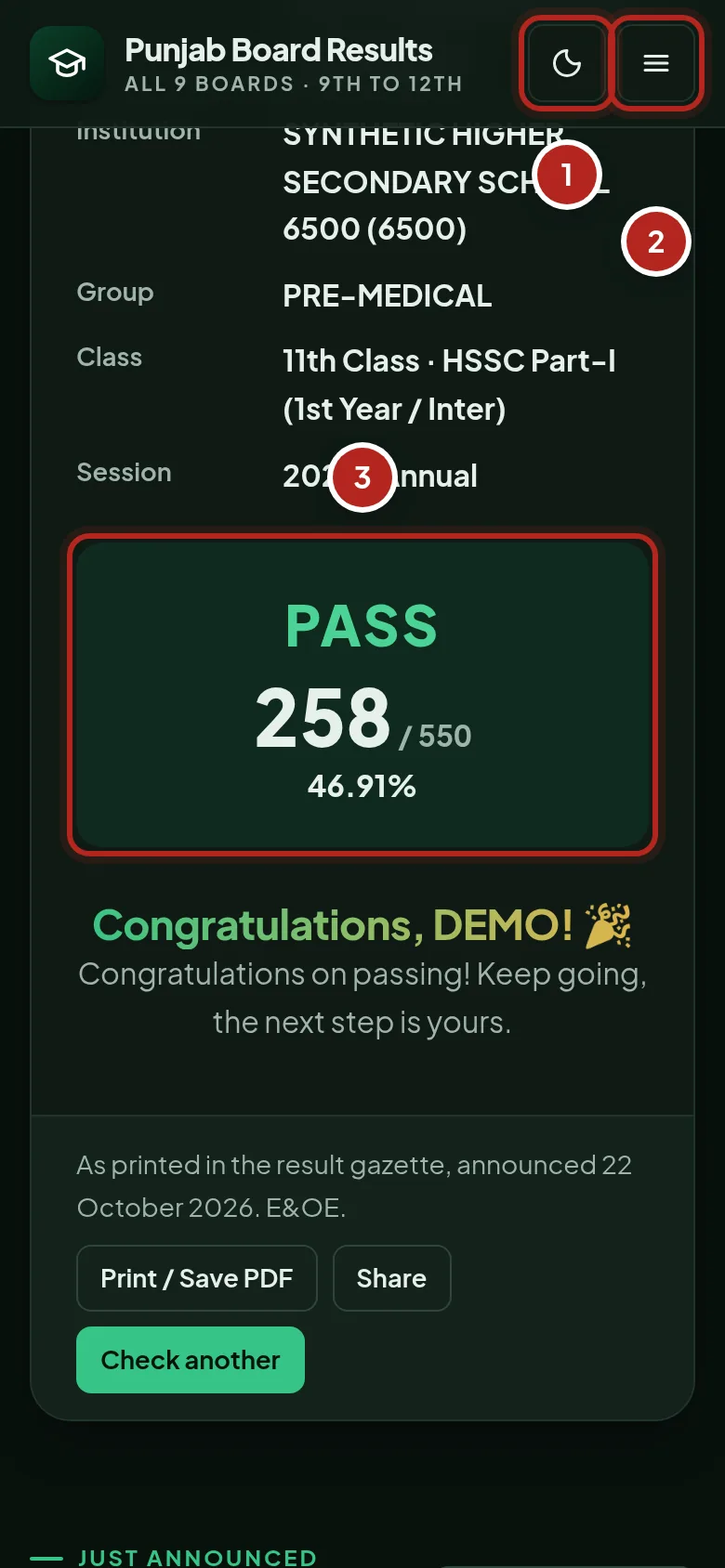
- Light or dark
- Menu
- Your result on a phone
If something looks wrong
“Roll number not found”
Check the board, the class and the result chosen above the roll number: a roll number belongs to one board and one examination. If it is right, your result may not be in this gazette (for example a late or withheld result).
My board or class says “coming soon” or “being uploaded”
Its result has not been published here yet. On result day results appear within minutes of the board’s announcement; the page updates without a reload.
A detail on my card looks wrong
The card shows what the board printed in its gazette. For a correction, contact your board. If our copy differs from the gazette, tell us on the Contact page.
More answers: Help & FAQs · Grading & passing rules